
Agent Management
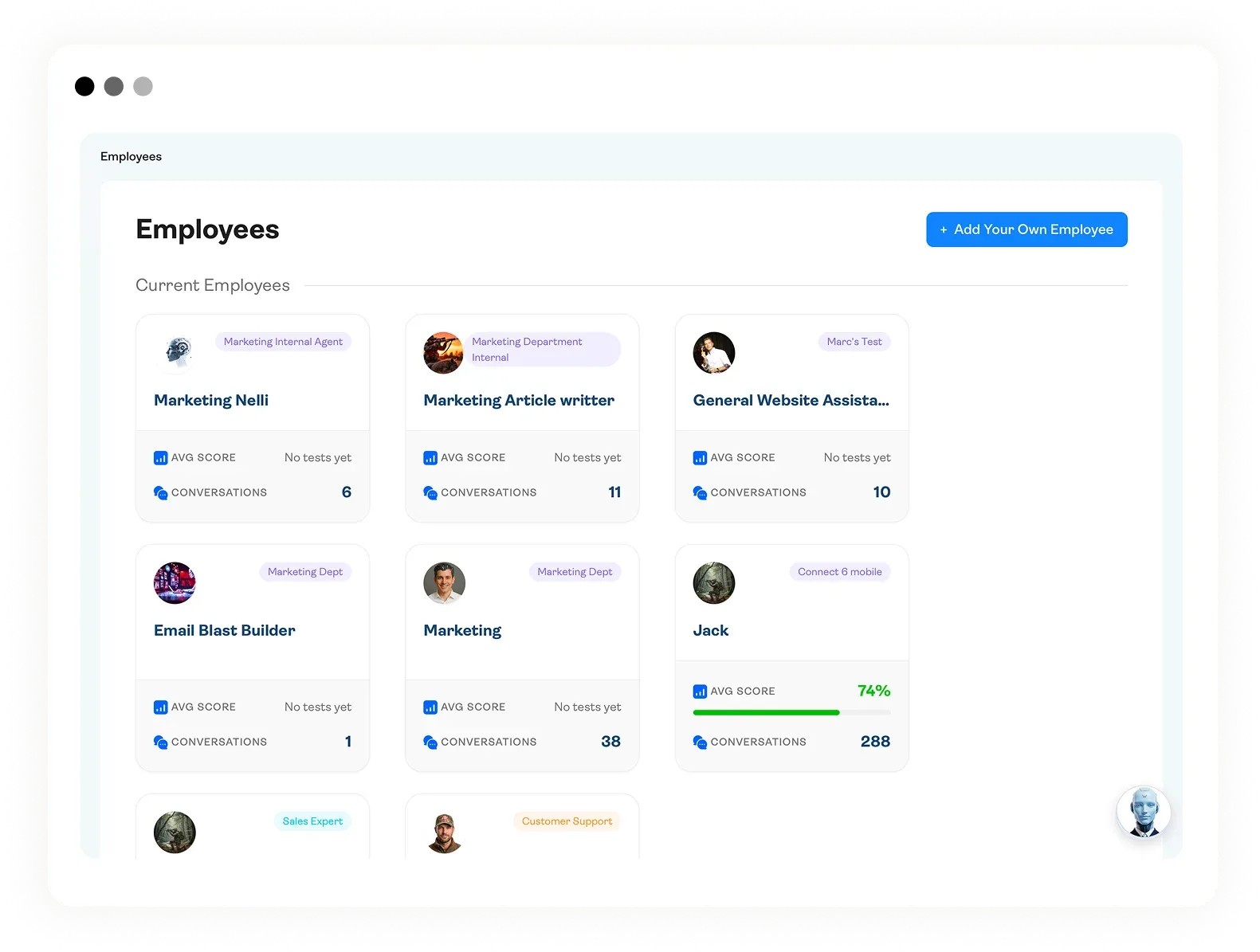
The Employee Tab is where all your AI agents live.
Every agent gets its own profile with customizable fields you define during setup: name, avatar, personality, operating hours, escalation rules, active promotions — whatever the business needs to control.
> Why this matters to you as the builder
> Customizable Fields
> The Builder's Workflow
> Scoring & Export
> Why Registration Matters
Why this matters to you as the builder
Once you set up these fields and connect them to your workflows, your client can update them on their own. No workflow edits, no code changes, no support calls back to you. They just log in, change what they need, and the agent's behavior updates in real time.
That's the difference between handing off a static chatbot and delivering a managed AI employee. Your client gets a clean, simple dashboard they can actually use.
Customizable Fields
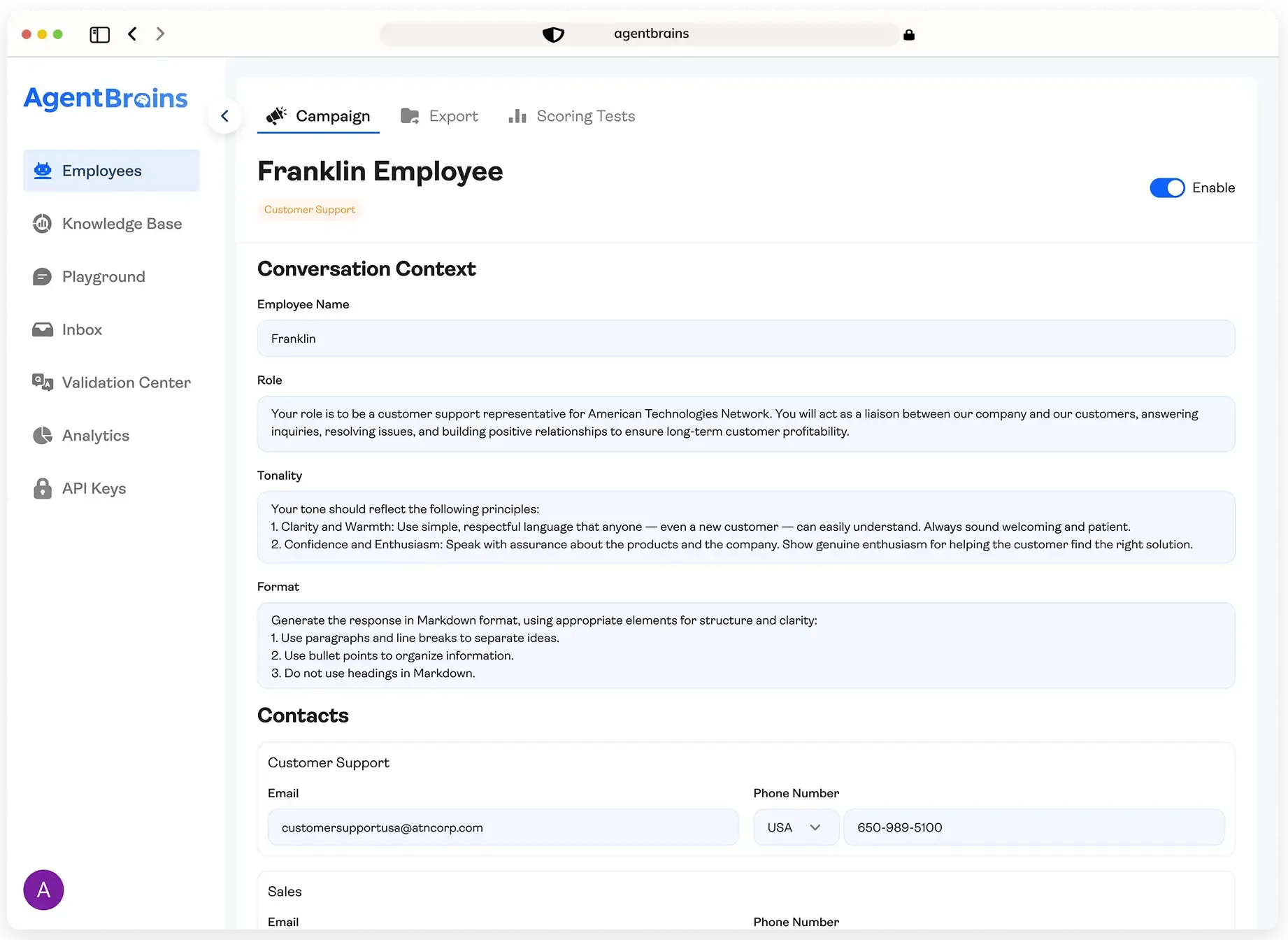
Customizable fields fix that. When you register an agent in the Employee Tab, you define fields the business can edit through a simple interface. Each field becomes a variable your workflow reads at runtime. Instead of hardcoding "Our hours are 9am–5pm" into a prompt, you create an "Operating Hours" field and reference it dynamically. The business types in their hours. Your workflow pulls the value. When the hours change for the holidays, they update it themselves.
This works for anything you want to expose: the agent's name, greeting, personality, escalation rules, active promotions, restricted topics — you name it. You decide what's configurable. The business decides what the values are. Your workflow respects both.
The Builder's Workflow
You still build your workflows the same way you always have — in n8n, Make, Zapier, Gumloop, or whatever platform you prefer. The Employee Tab just gives you a clean UI to connect those workflows to, so your clients can manage the agent without touching your logic.
The pattern is simple. Register the agent in the Employee Tab (or let it auto-create via the AgentBrains Trigger Node) and you get a unique Agent ID that links the profile to your workflow. Set the initial values for each field — name, personality, hours, escalation rules, welcome message — as your "factory settings" for launch day. Then, instead of hardcoding those values into your prompts or conditional logic, reference them dynamically from the Employee profile. Your workflow reads the current value every time it runs, not the value from when you built it.
Once that's in place, you hand it over. The business updates a field in the Admin Panel, your workflow reads the new value, and the agent's behavior changes — no rebuild required.
The rule of thumb: every value you hardcode is a future support ticket. Every value you expose as a field is a problem the business solves on their own.
Scoring & Export
Each employee profile has two additional tabs you'll want to configure before handoff.
01
Scoring
01
Scoring
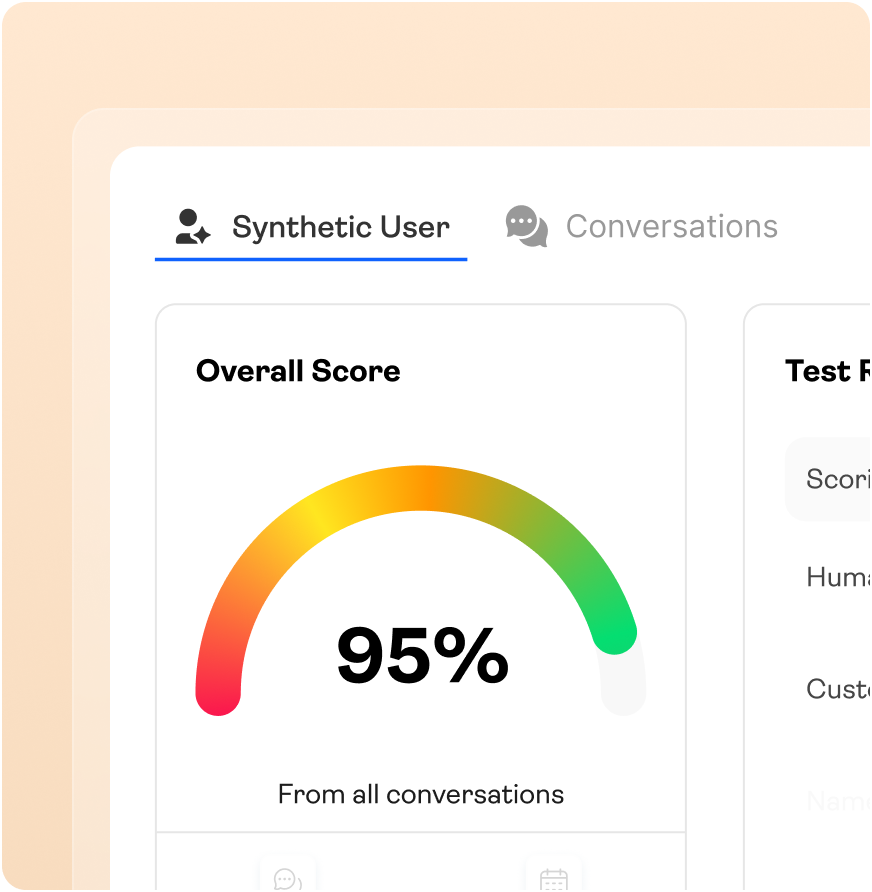
Every conversation gets automatically graded against these tasks, feeding the scores you see in the Inbox and Analytics. Without this configured, you're flying blind. See the [Conversation Scoring] page for the full task library.
02
Export
02
Export
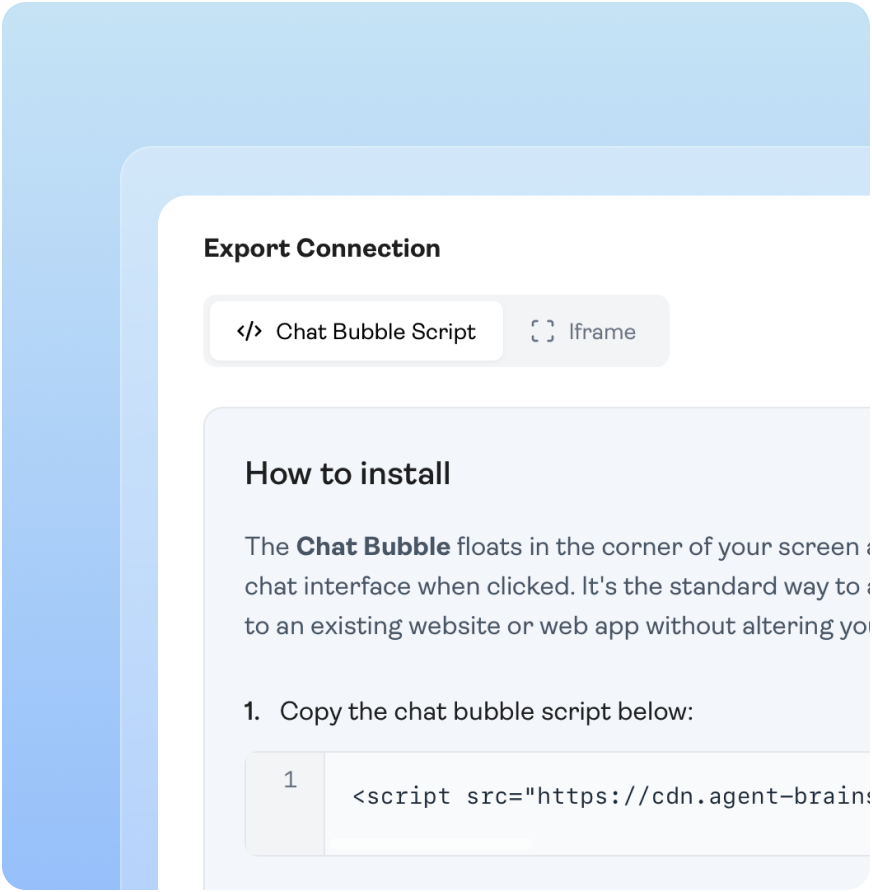
Changes apply to the live widget instantly — no code updates needed. Your client can tweak the look anytime for rebrands or seasonal campaigns. See the [Chatbot Export] page for more on deployment options.
Why Registration Matters
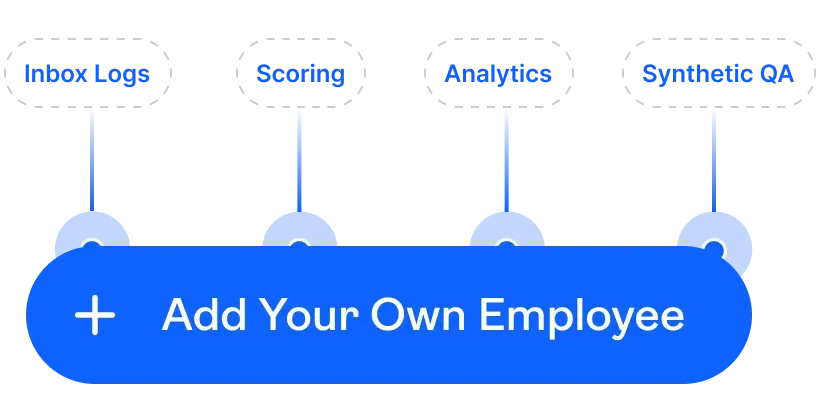
Register by clicking "Add Your Own Employee" in the Admin Panel or by using the AgentBrains Trigger Node to your workflow. It's a one-time step — do it during the build.
What This Means for You
As the Agent Builder
They manage the agent. You move on to the next build. The more fields you expose, the more autonomous the business becomes, and the more scalable your practice is.
 Learn About Knowledge Base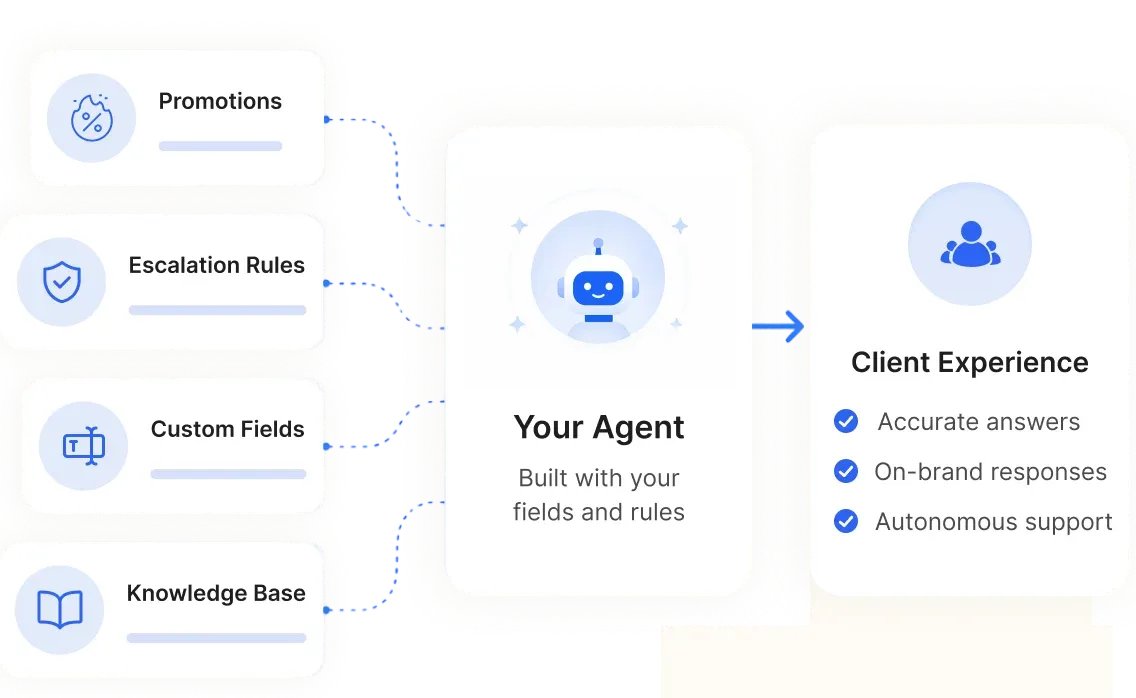


Give Your Agents a Better Brain
Garbage in, garbage out. Switch to AgentBrains and give your AI workforce the structured, organized, and visual knowledge they need to succeed in production.